
All articles
Help Center Sakaba Plus
Buy Sakaba Plus
Choose a monthly or yearly subscription or a one-time Lifetime purchase. Apple handles the payment.
Sakaba Plus comes as a monthly subscription, a yearly subscription or a one-time Lifetime purchase. All three unlock the same things; see Free vs Sakaba Plus for the list.
Open the Sakaba Plus page
Tap the gear at the top left of Home to open Settings, then tap Sakaba Plus. The row reads Upgrade until you have Plus.
The same page opens when you tap Unlock with Plus on a Plus recipe, when you reach a free limit, and when you tap a Plus option in Settings: Accent, one of the Plus app icons, or a Backup row. It is also the last screen of the welcome steps on first launch, where you can close it with ✕ and carry on for free.
Choose a plan
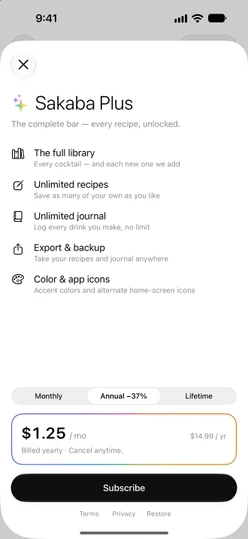
Pick a plan at the bottom of the page:
- Monthly. Billed every month until you cancel.
- Annual. Billed once a year until you cancel. It is selected when the page opens. Its tab shows how much you save compared with paying monthly for a year, and its card shows the price per month with the yearly total beside it.
- Lifetime. One payment, with nothing to renew.
Prices come from the App Store in your country’s currency and are shown on the page before you buy.
Tap Subscribe for Monthly or Annual, or Buy once for Lifetime, then confirm in Apple’s purchase sheet. Plus unlocks as soon as the purchase goes through and the page closes. If you came from a Plus recipe, it opens straight away.
How billing works
Apple handles the payment and charges your Apple Account. Sakaba never sees your payment details.
Monthly and Annual renew automatically unless you cancel at least 24 hours before the current period ends. To change plans or cancel, see Manage or cancel your subscription. The full purchase terms are in the Terms of Use.
Sakaba doesn’t currently offer a free trial.
Family Sharing
Sakaba Plus can be shared through Family Sharing. Members of your family group get Plus on their own devices, with their own Apple Account.
Waiting for approval
If your purchases need approval, for example with Ask to Buy, Sakaba tells you the purchase is waiting for approval. You don’t need to do anything else: Plus unlocks on its own once the purchase is approved.
If something goes wrong
Couldn’t load the store. Check your connection and try again.The plans couldn’t be loaded from the App Store. Check your connection and tapTry again.Purchase failed. Please try again.The App Store didn’t complete the purchase. Try again in a moment.Couldn’t verify your purchase. If you were charged, contact support.The App Store reported the purchase, but Sakaba couldn’t confirm it. If you were charged, write to us with the date of the purchase.
If you close Apple’s purchase sheet without confirming, nothing is bought and nothing is charged.
Good to know
- Already have Plus? The page shows
Sakaba Plus is activeinstead of the plans. - Lifetime and a running subscription. While a subscription is active, the plans aren’t shown, so Lifetime can’t be bought on top of it. See Manage or cancel your subscription.
- New device or reinstall. There’s no need to buy again. See Restore purchases.
Questions? Write to sakabaapp@proton.me.