
All articles
Help Center My Bar & shopping
Set up My Bar
Tick the bottles, mixers and pantry items you have at home, so Sakaba can work out which cocktails you can make.
My Bar is where you tell Sakaba what you have at home. Tick your bottles, mixers and pantry staples once, and the app works out which cocktails you can make from them.
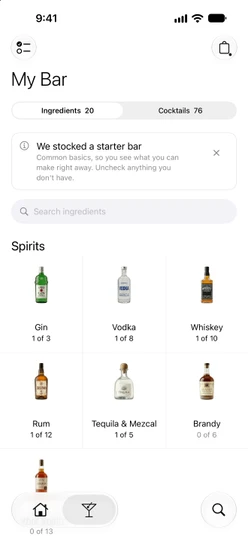
Open My Bar
Tap the martini glass in the tab bar (My Bar in the iPad sidebar). At the top, switch between Ingredients and Cocktails. The number next to Ingredients is how many items you’ve ticked; the number next to Cocktails is how many drinks you can make right now. My Bar remembers which of the two you used last.
Tick what you have
The Ingredients tab groups everything into sections: Spirits, Basics, Liqueurs, Others, Fridge and Pantry. Each card is a category, such as Gin, Juices or Bitters, and shows how many of its items you have, for example “3 of 12”.
- Tap a card to open its items.
- Tap an item to tick it. Tap it again to untick it. Changes are kept right away; there’s no Save button.
- Tap
✕to close the sheet.
Basics is a shortcut to everyday items such as lime juice, simple syrup, soda water and Angostura bitters. They also appear in their own categories, and ticking one in either place ticks it everywhere.
To tick or untick a whole category, tap ⋯ at the top right of its sheet and choose Select all or Clear. Clear asks you to confirm first.
Find an item fast
Type in Search ingredients at the top of the Ingredients tab to search every category at once, then tick the results right there. Each category sheet has its own search field too. Search ignores accents and letter case, and can often still find an item when you make a small typo.
The starter bar
The first time you open Sakaba, it ticks 20 common items for you, so you can see what you can make straight away: gin, vodka, white rum, bourbon, tequila, lime, lemon, orange and cranberry juice, simple syrup, sugar, grenadine, soda water, tonic water, cola, ginger beer, Angostura bitters, sweet and dry vermouth, and triple sec.
A note at the top of the Ingredients tab says “We stocked a starter bar”. Untick anything you don’t own. The note goes away as soon as you change your bar, or tap ✕ on it to dismiss it.
If your bar already syncs through iCloud from another device, Sakaba uses that bar instead of the starter set.
Review or clear your whole bar
Once you’ve ticked something, a checklist button (In your bar) appears at the top left of My Bar. It shows everything you own in one sheet, with the total at the top. Tap an item to untick it. It stays in the sheet until you close it, so you can tick it back if you change your mind.
To start over, tap the trash button (Clear bar) in that sheet and confirm with Clear bar. Clearing your bar doesn’t bring the starter bar back.
Water and ice are assumed
You never need to tick water, ice, crushed ice or hot water. Sakaba assumes you have them, so they aren’t listed.
Good to know
- A bottle you own isn’t listed. My Bar only lists ingredients that Sakaba’s recipes use. Try searching for it by another name, or look in
OtherandOther Spirits. When a search finds nothing, the app reminds you: “Sakaba lists the ingredients its recipes use.” - Tick the specific bottle. A specific bottle also covers recipes that ask for its general kind: white rum covers “rum”, and Cointreau covers “triple sec”. See Substitutions.
- Your own ingredients count too. A new ingredient you add to a recipe of your own appears in My Bar as well.
- Sync. My Bar syncs across your devices signed in to the same iCloud account. See iCloud sync.
- Next step. Switch to
Cocktailsto see what you can make.
Questions? Write to sakabaapp@proton.me.