
All articles
Help Center Your recipes & journal
Tasting journal
Log the drinks you make with a rating, notes, a photo and the recipe exactly as you poured it.
The journal is your record of the drinks you’ve made: how you rated them, what you thought, a photo, and the recipe exactly as you poured it that day.
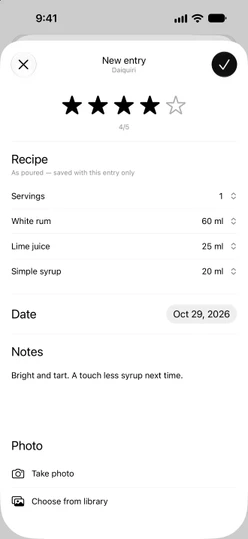
Add an entry
There are three ways to start one:
- From a recipe. Tap
Add entryat the bottom of the recipe page. - After guided mixing. On the last step, tap
How was it?. See Guided mixing. - From the Journal. On Home, tap the book at the top right, then
+. Choose the drink inChoose a cocktail; your favorites are listed first, and you can search.
The editor opens as New entry, with the drink’s name under the title on iOS 26.
Fill in the entry
- Rating. Tap a star to rate from 1 to 5. Tap the same star again to clear the rating.
- Recipe. Under
As poured — saved with this entry only, Sakaba fills in the servings and amounts. Starting from a recipe page or guided mixing, these are the amounts you set up on that page. Tap a row to change what you actually poured; set an ingredient to 0 to leave it out. This changes the entry only, never the recipe. - Date. Today, unless you pick another day. Dates in the future aren’t allowed.
- Notes. Write anything you want to remember.
- Photo.
Take photoorChoose from library. See Photos.
Tap the checkmark at the top right to save. An entry needs at least a rating, a note, a photo or a change to the poured recipe; otherwise Sakaba tells you: “Add a rating, note, or photo to save.” When it saves, you’ll see Entry added.
To leave without saving, tap ✕. If you’ve changed anything, Sakaba asks whether to Keep editing or Discard changes.
Browse your journal
On Home, tap the book at the top right to open Journal. Each entry shows the drink, your stars, the start of your notes, the date and a photo thumbnail. Tap one to open it.
- Sort. Tap the arrows button next to the search field and choose
Newest,Highest ratedorCocktail name. - Search. Type in
Search entriesto find a drink by name or a word in your notes.
On a recipe page, a Journal section appears once you’ve logged that drink. It shows your 3 newest entries and the average rating, and See all … entries opens the rest.
Your average rating also appears next to the drink’s name in cocktail lists, and the Highest rated sort in lists and Favorites uses it.
Open, edit or delete an entry
An entry’s page shows the drink, the photo, your rating and date, your notes, and the recipe As poured. Tap the photo to see it full screen.
Tap ⋯ at the top right and choose Edit to change the entry, or Delete to remove it. You can also long-press an entry in a list and choose Delete. Deleting asks you to confirm and can’t be undone.
The free limit
Without Sakaba Plus you can keep 3 journal entries in total, not per month. When you have 3, Add entry and + open the Sakaba Plus screen instead. Deleting an entry frees up a slot. See Free vs Plus.
If your Plus ends, you keep every entry and can still open, edit and delete them. You just can’t add more while you have 3 or more.
Good to know
- Entries keep their recipe. The poured recipe is frozen with the entry, so later changes to the recipe or your servings don’t rewrite past entries.
- Deleting your own recipe deletes its entries. Sakaba warns you before it does. See Create your own recipe.
- “Recipe removed.” If the drink an entry belongs to is no longer in Sakaba, the entry stays in your Journal with its rating, notes, photo and date. It opens read-only, and you can still delete it.
- Plus recipes.
Choose a cocktailonly lists drinks you can open. - Sync and export. Entries and their photos sync through iCloud; see iCloud sync. With Plus you can export your journal; see Backup and restore.
Questions? Write to sakabaapp@proton.me.