
All articles
Help Center Data, privacy & support
Back up and restore your data
Save your recipes, journal, favorites and bar to a file, export your journal as a spreadsheet, and restore from a backup.
iCloud keeps your devices in sync, but a backup file is a copy you keep yourself. With Sakaba Plus you can save everything you’ve made to a file, export your journal for a spreadsheet, and restore a backup later.
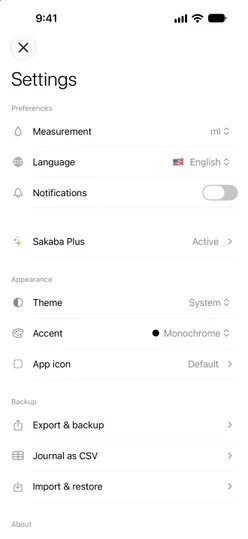
All three options are under Backup in Settings. Tap the gear at the top left of Home to get there. Without Plus, each row shows a ✨ Plus badge and opens the Sakaba Plus page.
Make a backup
Tap Export & backup. Sakaba creates a file named Sakaba Backup with today’s date, such as Sakaba Backup 2026-10-29.json, and opens the share sheet. Choose where to keep it: Save to Files, AirDrop to a Mac, or anywhere else the share sheet offers.
The backup includes:
- your own recipes, with their ingredients, steps and photos
- every journal entry, with its rating, notes, photo and the recipe as you poured it
- your favorites, both library recipes and your own
- the bottles in My Bar
If there’s nothing to save yet, you’ll see Nothing to back up yet.
What a backup doesn’t include
- the shopping list
- your settings, such as units, language, theme and accent
- servings and amount changes made on recipe pages
- your Sakaba Plus purchase, which comes back from the App Store instead; see Restore purchases
Export your journal as a spreadsheet
Tap Journal as CSV. Sakaba creates Sakaba Journal with today’s date, a CSV file that Numbers, Excel and Google Sheets can open, and opens the share sheet. It has one row per entry, with the columns Date, Cocktail, Rating, Notes and Tags. Photos aren’t included.
If your journal is empty, you’ll see No journal entries to export.
Restore from a backup
Tap Import & restore and pick a Sakaba backup file (.json) in the Files browser.
Restoring adds to what you already have. It removes no recipes, entries, favorites or bottles, with one exception: a recipe with the same name as one in the backup is overwritten.
- Your recipes. A recipe in the backup is added. If you already have a recipe with the same name (capital letters don’t matter), it’s replaced by the version in the backup: its ingredients, steps, photo and favorite mark.
- Journal entries. Entries are added. Entries you already have are skipped, so restoring the same file twice doesn’t create duplicates.
- Favorites are added to your favorites.
- My Bar. Bottles from the backup are ticked. Bottles you’ve ticked since stay ticked.
When it’s done, Sakaba tells you what it restored, for example Restored 4 recipes · 12 entries. If a photo in the file was damaged, the message also says how many photos couldn’t be read.
If a restore doesn’t work
Couldn’t read that file. The file isn’t a Sakaba backup, is damaged, or is too large to open. Check that you picked a file made withExport & backup.This backup needs a newer version of Sakaba. The backup was made by a newer version of the app. Update Sakaba from the App Store, then try again.Couldn’t restore that backup — try again. The file was read, but saving it failed. Nothing was changed; try again.
Good to know
- Your file, your copy. Sakaba never receives your backup. Where it goes is up to you.
- If Plus ends. Your backup files stay yours. Restoring one needs Plus again.
- Restored data syncs. After a restore, your recipes, journal, favorites and bar sync to your other devices through iCloud. See iCloud sync.
Questions? Write to sakabaapp@proton.me.